


Waypoints are user-defined locations on the map. They are also called Places. Once you have created your waypoints in the Polaris App, there are several ways to transfer them to your vehicle. For more information on these processes, read Syncing RIDE COMMAND Data.
Note: For increased accuracy, zoom in when creating new waypoints.
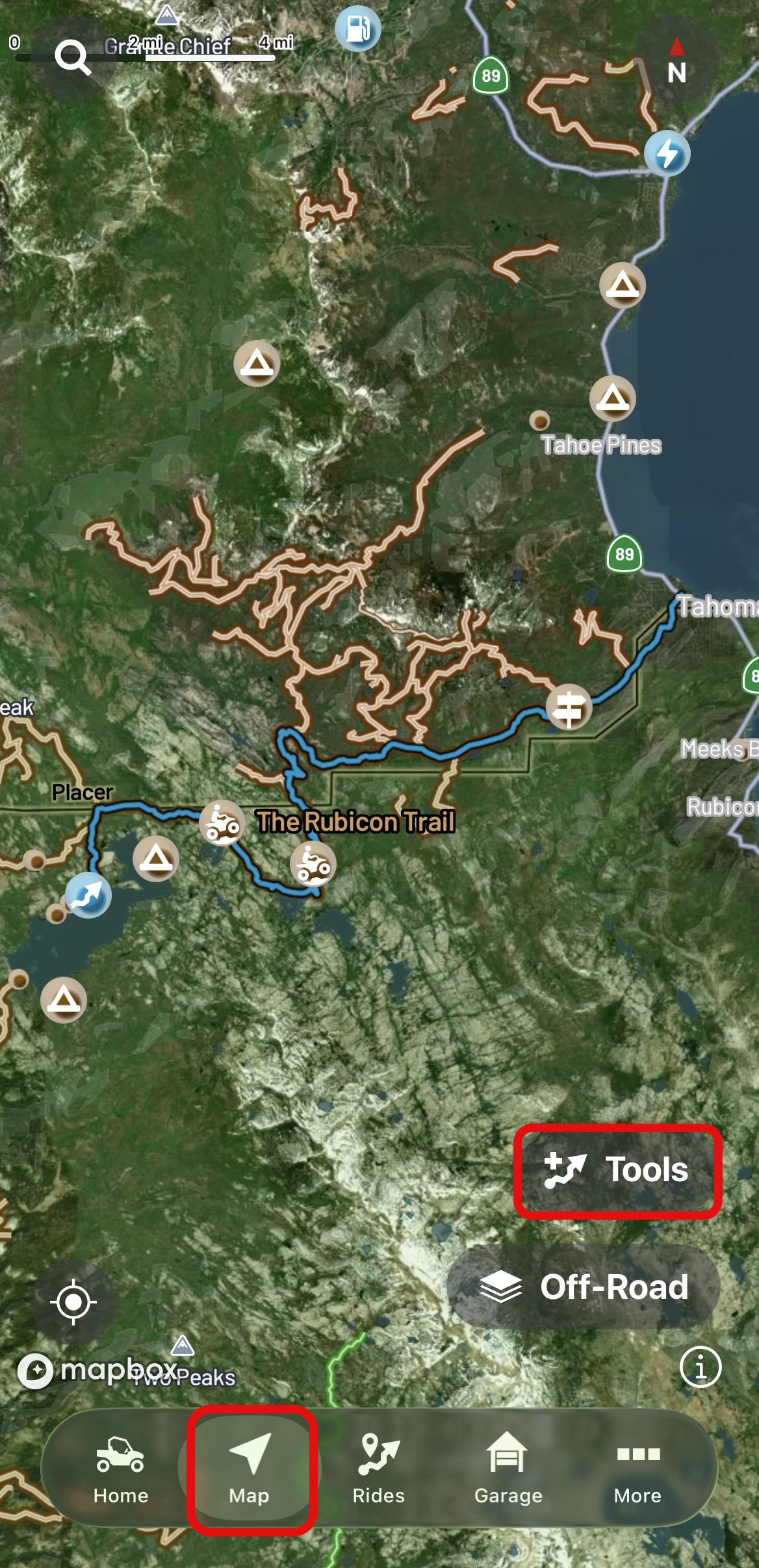
To add a waypoint/place, select TOOLS from the bottom-right corner of the map page.
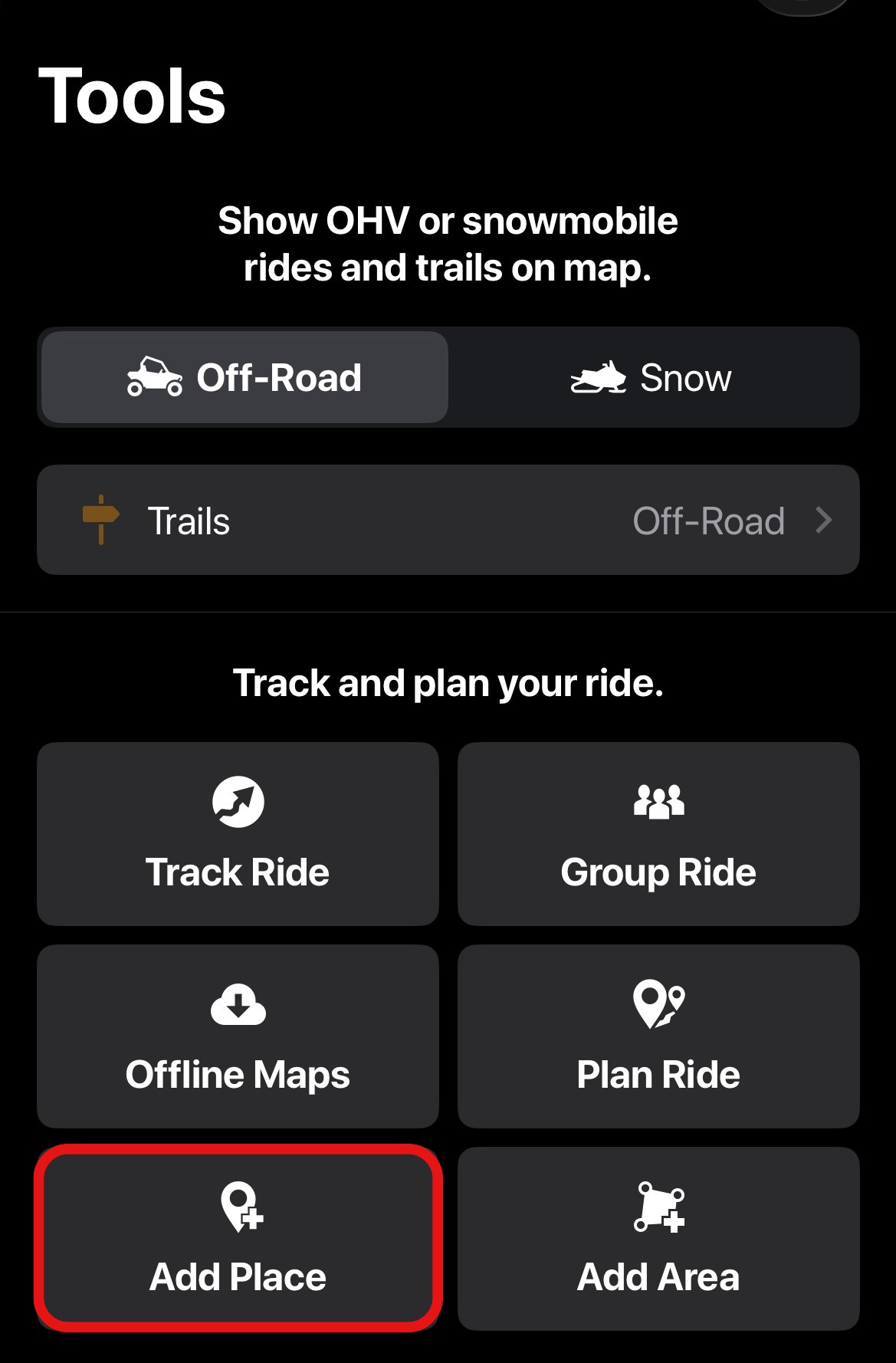
Then select ADD PLACE.
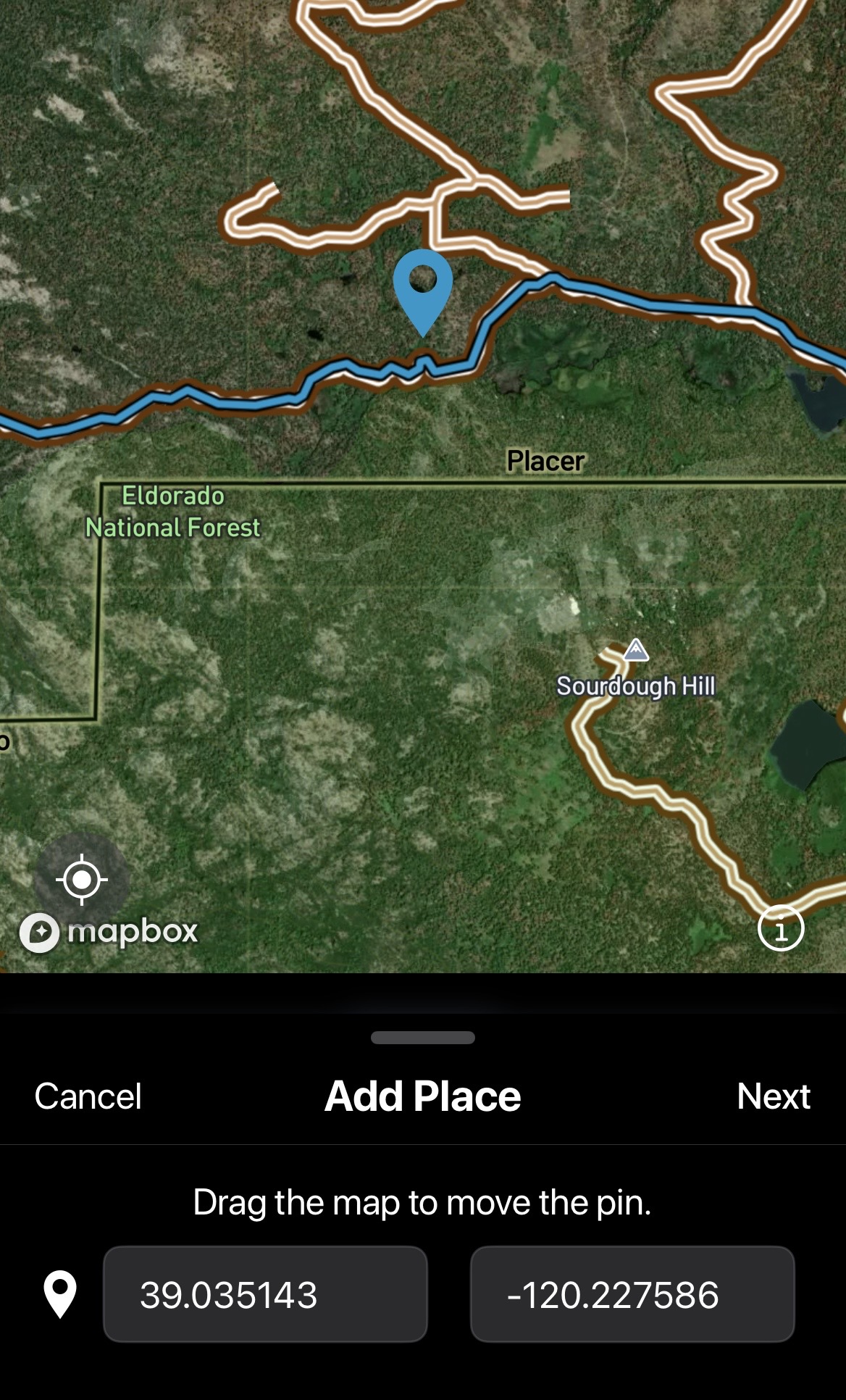
Move the waypoint to your desired location and select NEXT.
A name is required for your place/waypoint. Once named, select DONE.
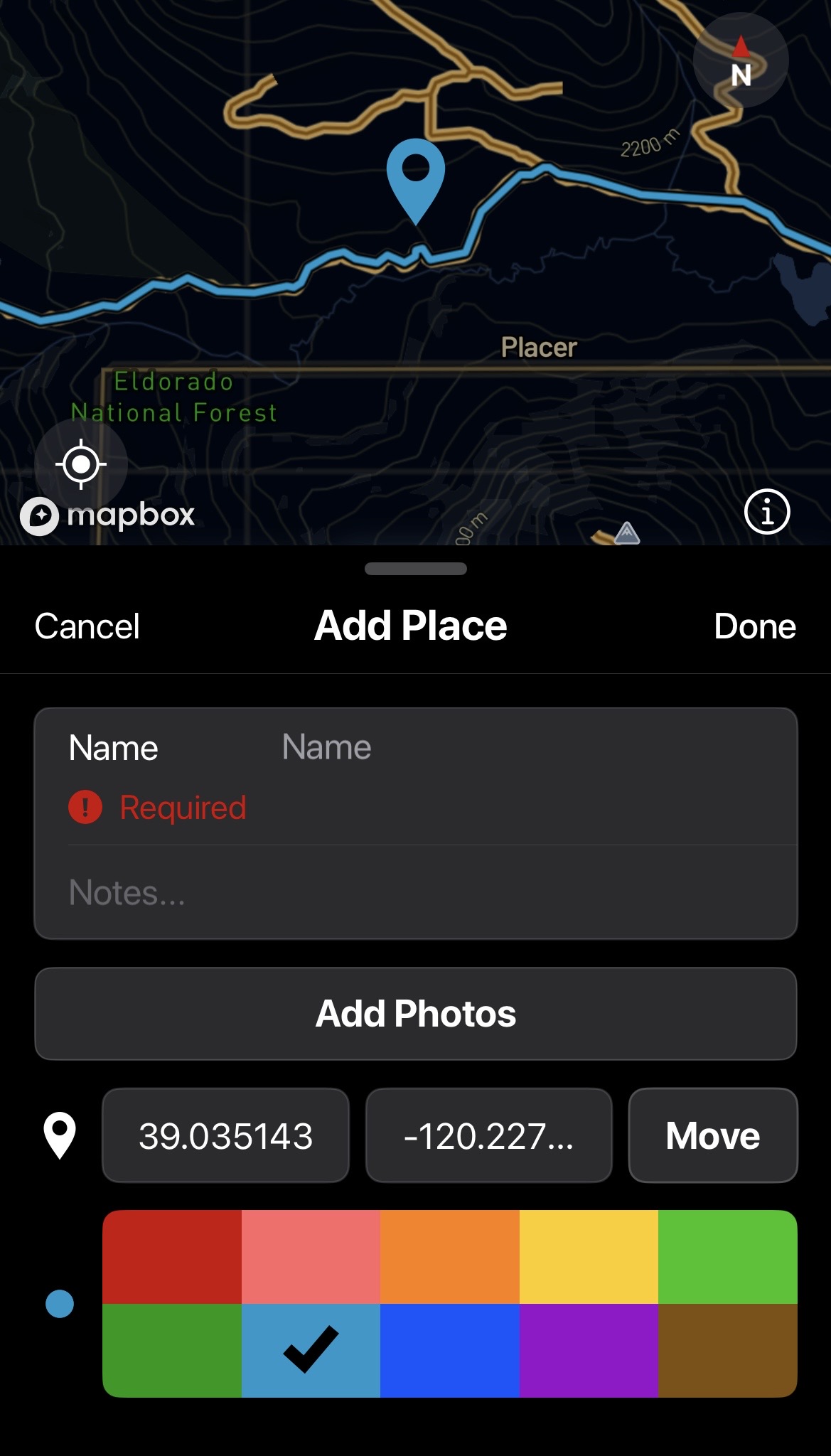
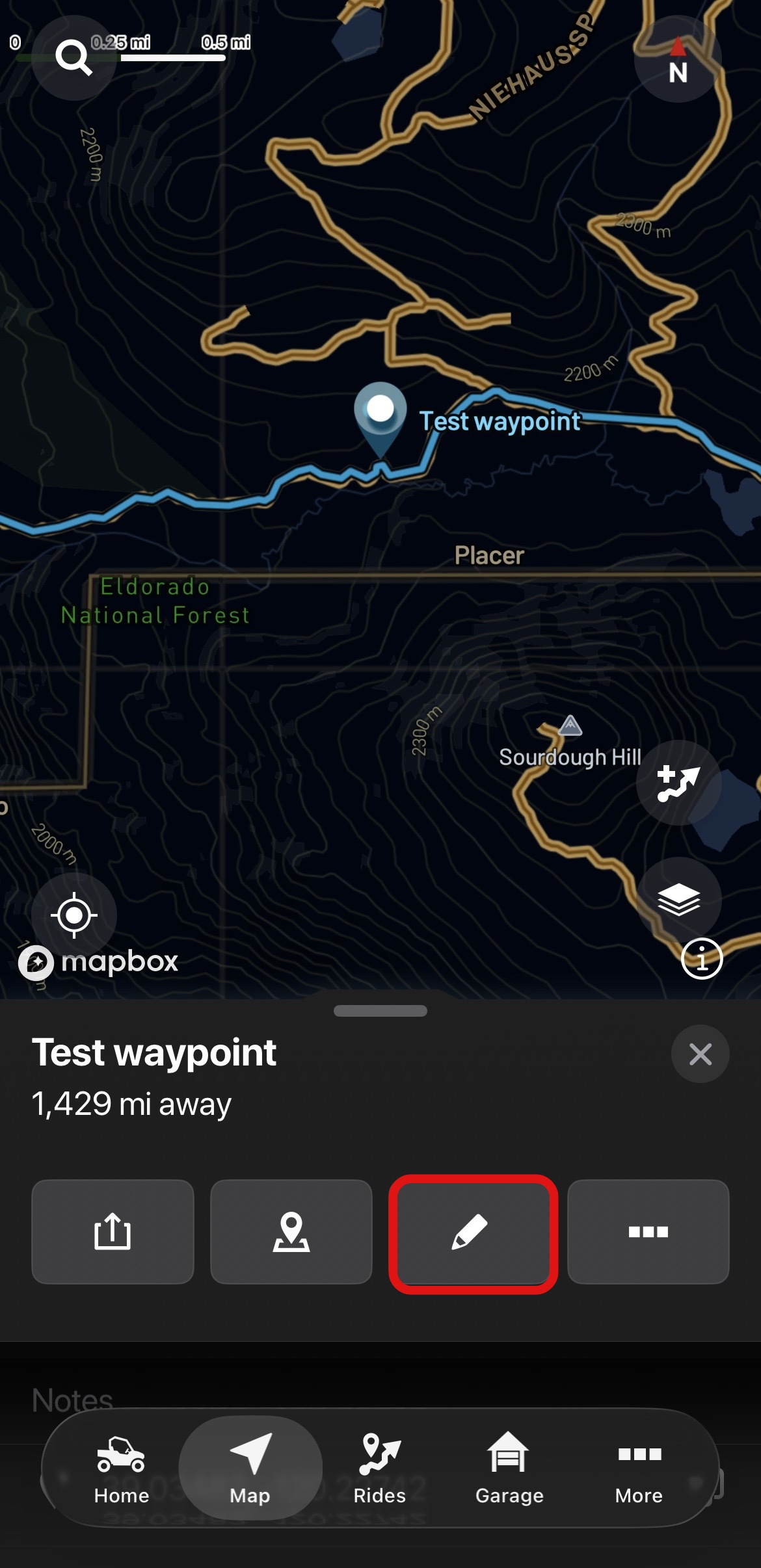
To further edit your waypoint, select the pencil icon next to the name. This will enable a pop-up menu of actions, including edit name, add notes, add photos, and changing the color of the waypoint.
Note: A waypoint can also be created by using a long press on the location where you wish to set it.
Deleting Waypoints
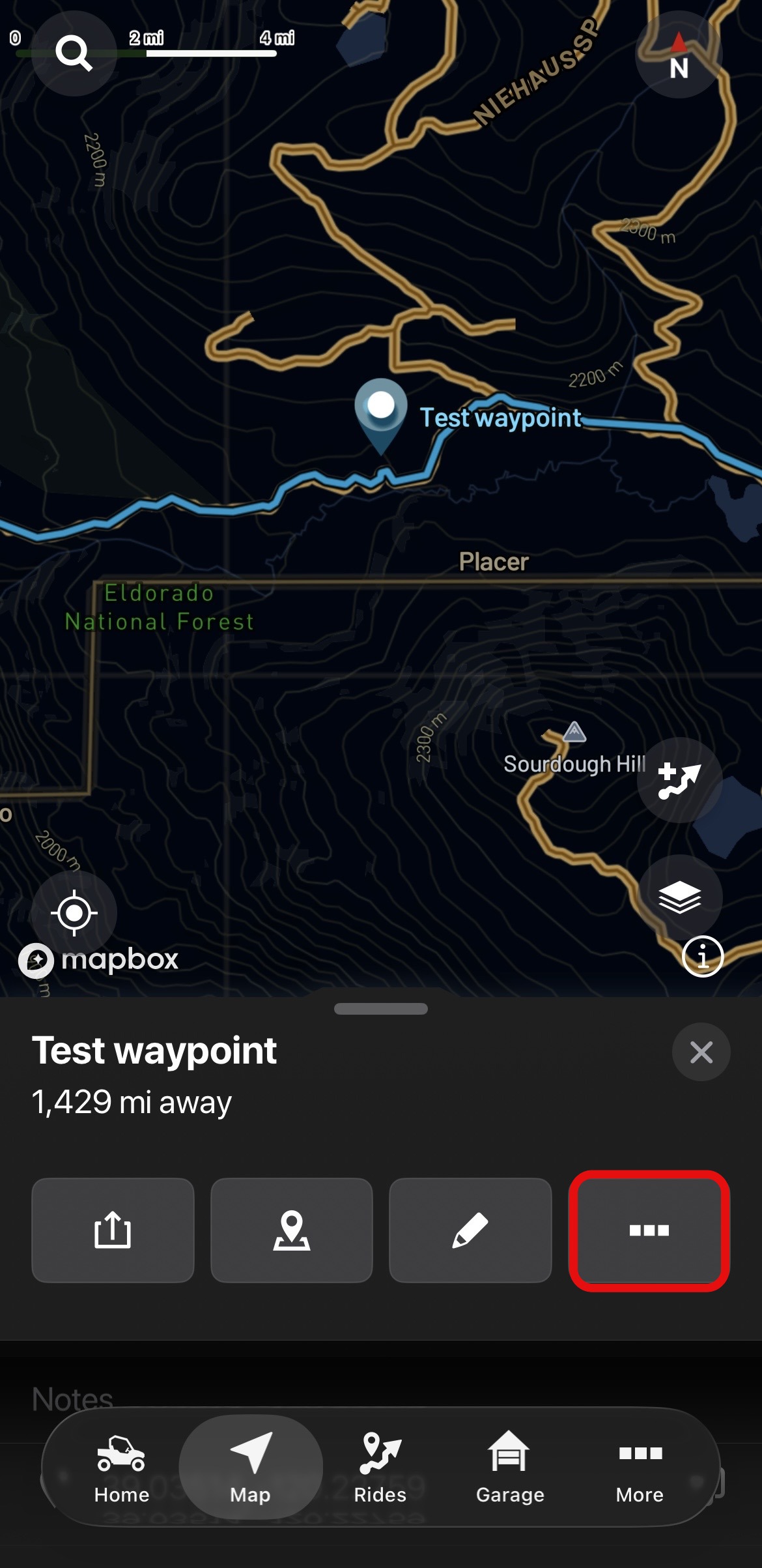
To delete a waypoint, click the three horizontal dots next to the waypoint name.
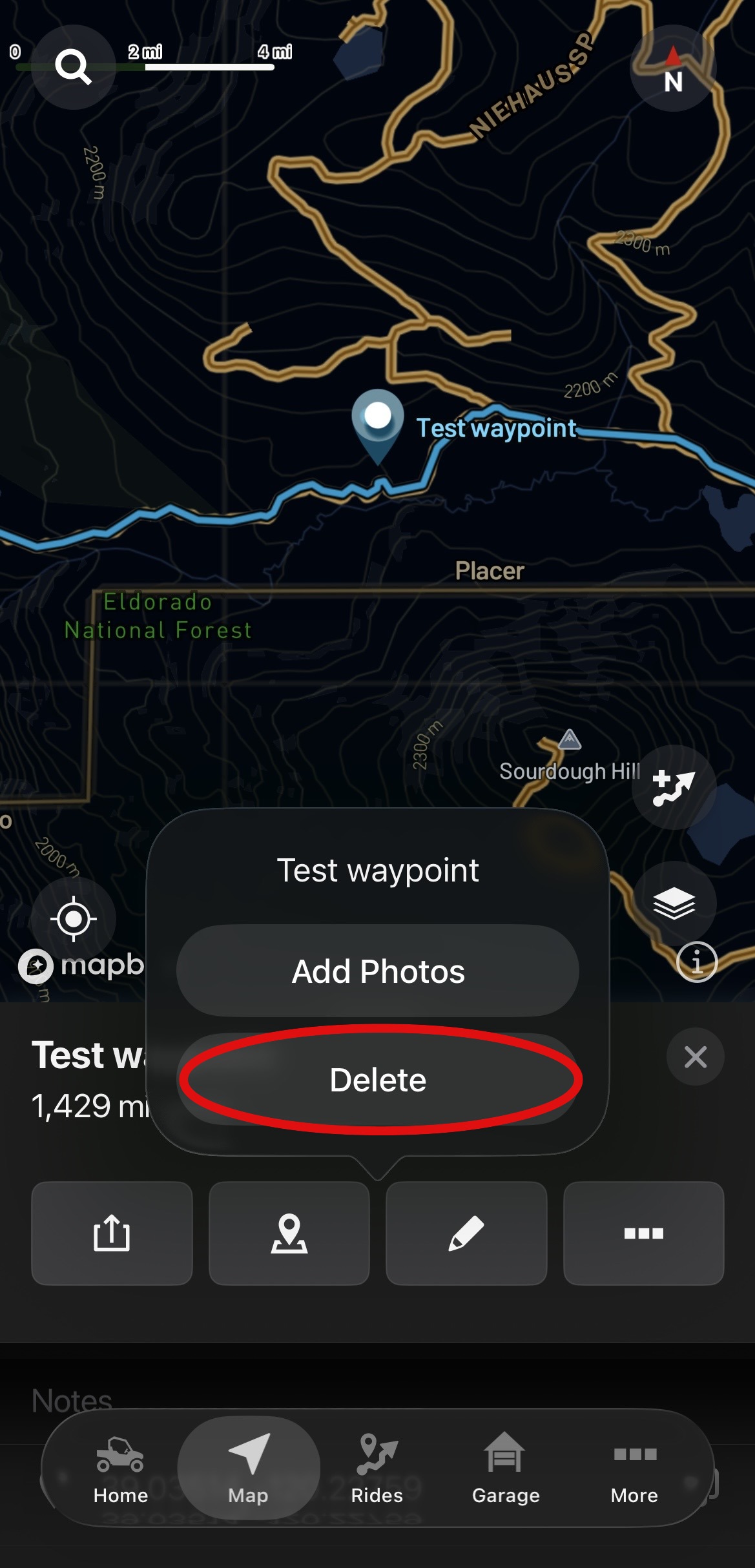
From the pop-up menu, select DELETE.
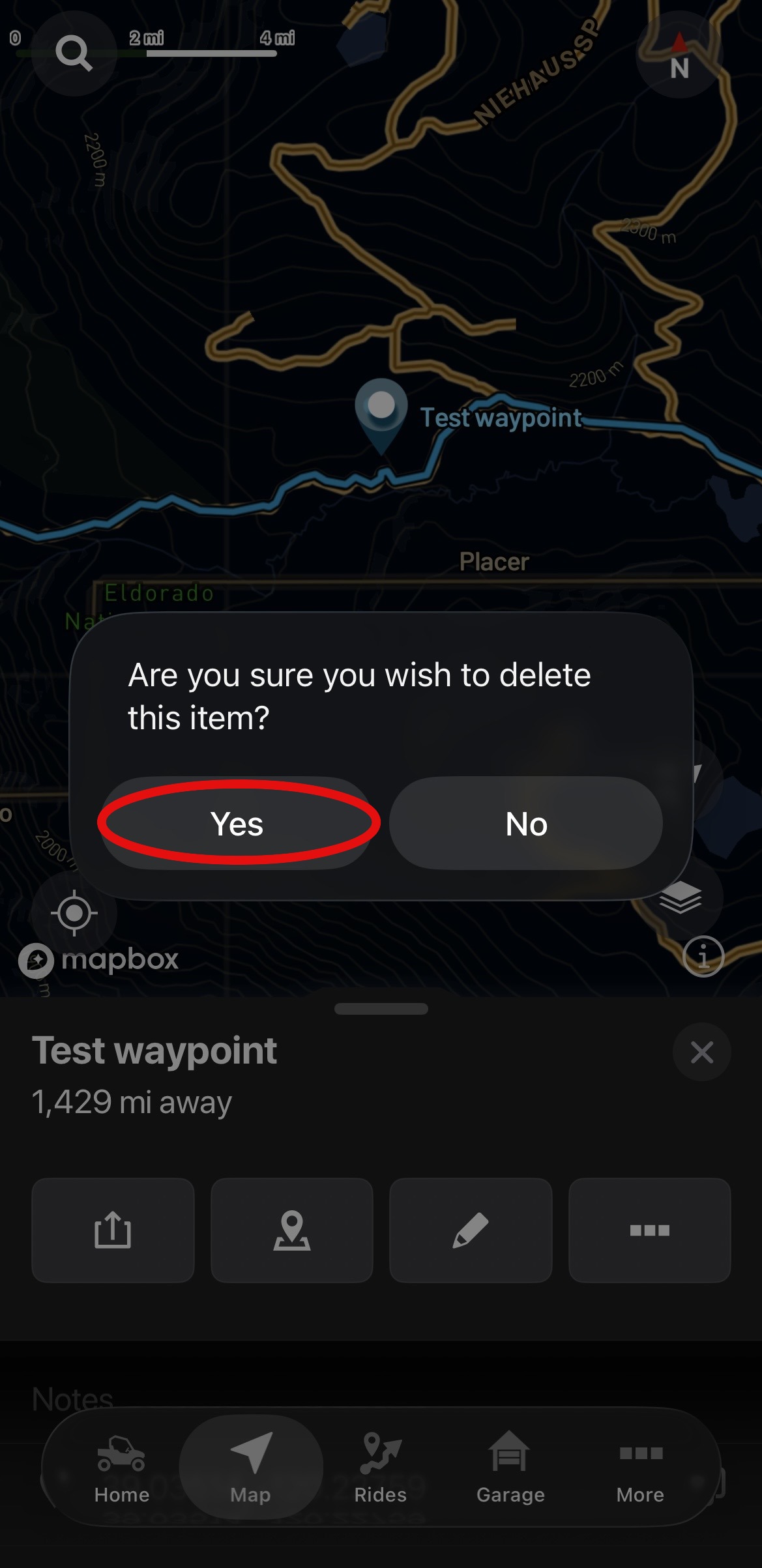
To confirm deleting the waypoint, select YES.
Accessing Saved Waypoints
To access waypoints you previously saved, navigate to the RIDES tab on the app.

From the menu at the top of the page, select PLACES. Here you can see your saved waypoints or add a new waypoint.
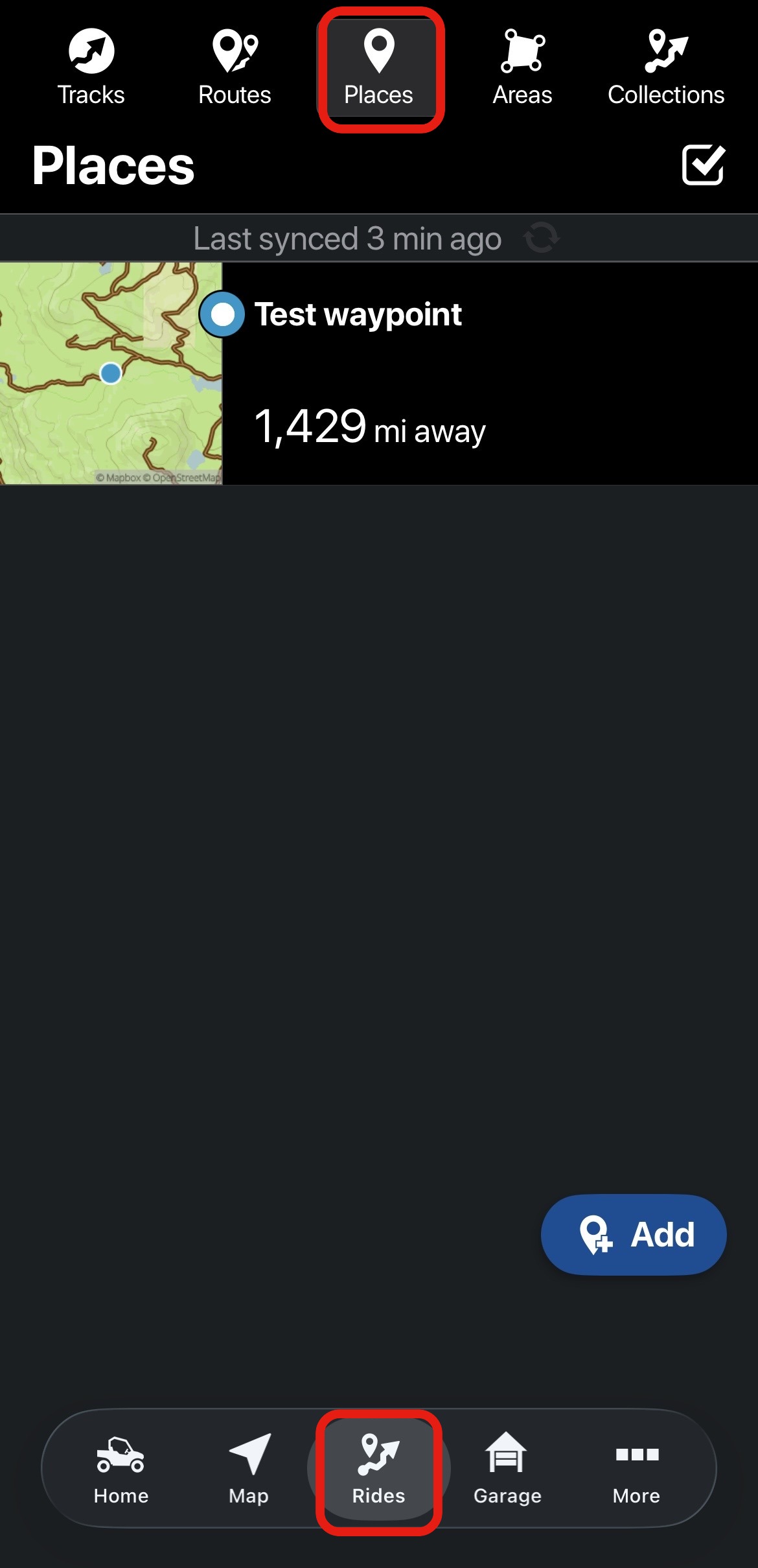
To view details or edit a waypoint, select a waypoint from the list. In the text box, you can rename the waypoint. See the numbered items below for more options.
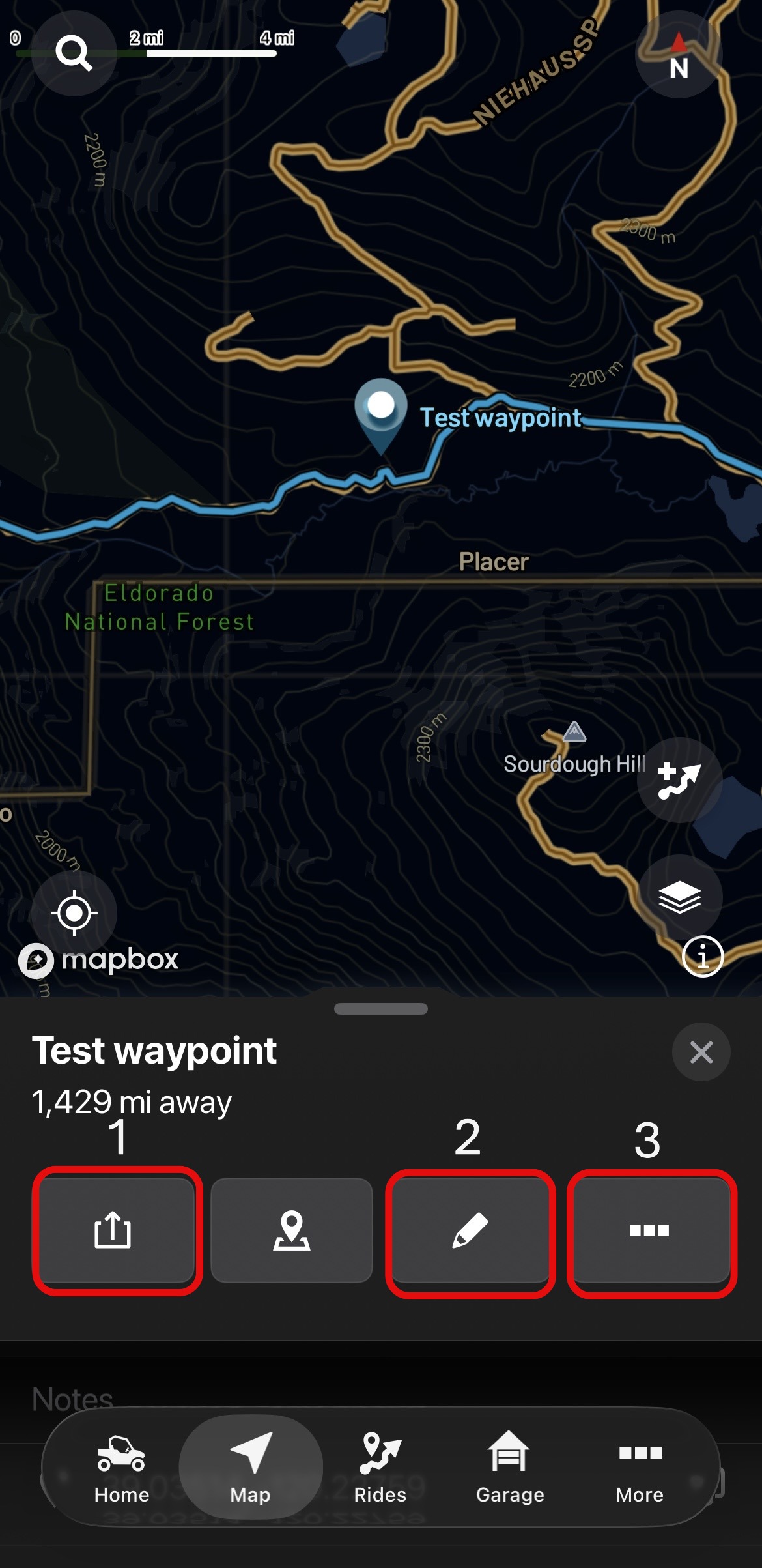
1. Share the selected waypoint via text, social media or email.
2. Add notes, photos, or edit the name of the selected waypoint.
3. Add photos or delete the selected waypoint.
To browse all RIDE COMMAND articles, read Guide to RIDE COMMAND for Off-Road Vehicles.
The Polaris App is available on the App Store® for iPhone® and iPad® and on Google Play®.
Visit the RIDE COMMAND website for additional information about features, displays and software/map updates.
Mapboxsm is a service trademark of Mapbox, Inc.
Google Play® is a registered trademark of Google LLC
App Store®, iPad® and iPhone® are registered trademarks of Apple Inc.
Unless noted, trademarks are the property of Polaris Industries Inc.
© 2026 Polaris Industries Inc.


