


You can download maps from the Polaris App to use when you are not connected to the internet or cellular data.
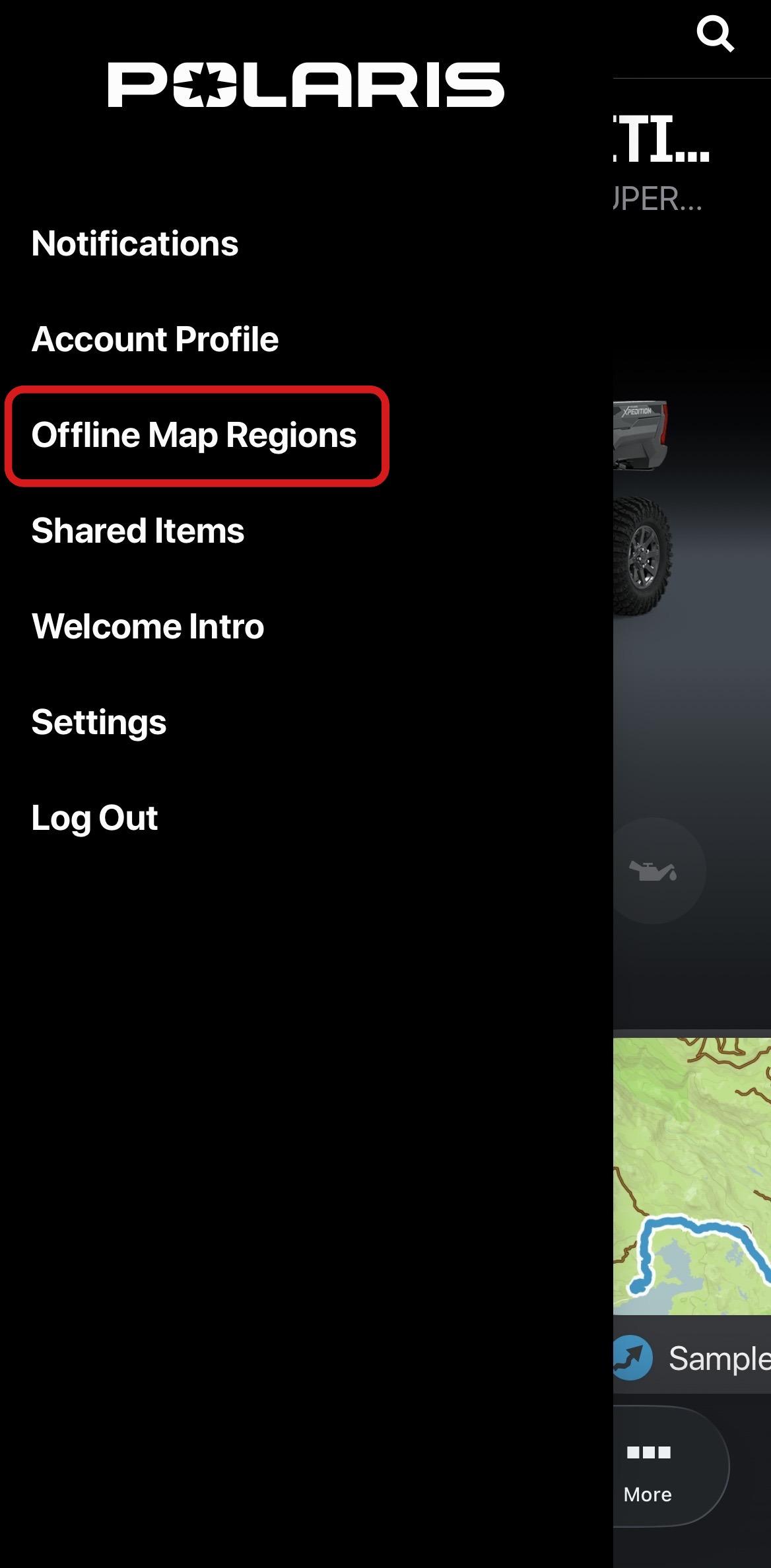
To download maps, go to the side menu by tapping the three lines in the upper-left corner of the screen.
Tap OFFLINE MAP REGIONS. This is where you will see all the regions that have been downloaded for offline use. Map regions can be downloaded only over Wi-Fi.
Select the region you would like to download by panning and zooming the map in and out. What you see within the blue dotted lines will be included in the downloaded map. You can then edit the name of the offline region.
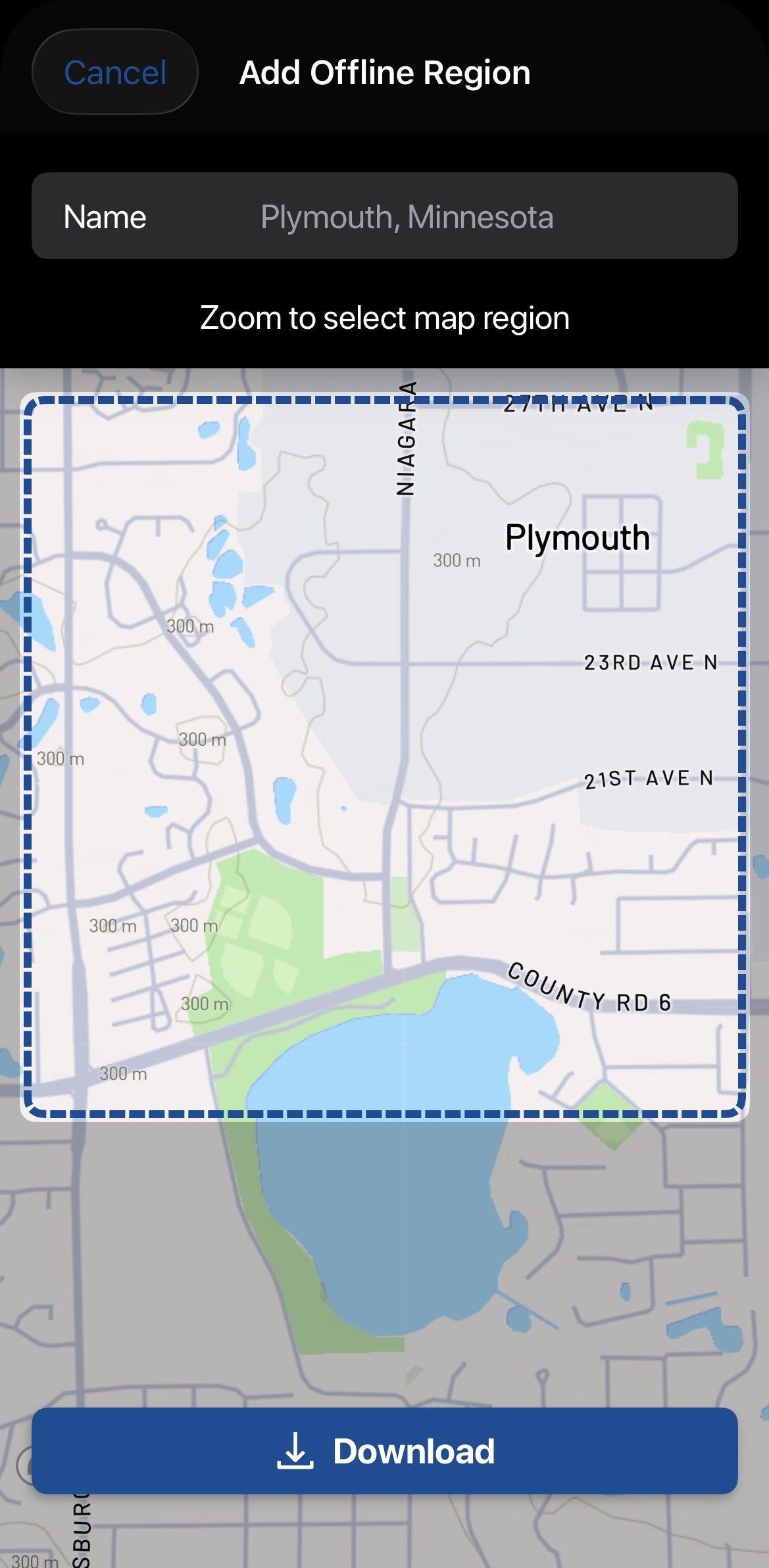
Once you have the desired region inside the box, tap the DOWNLOAD button.
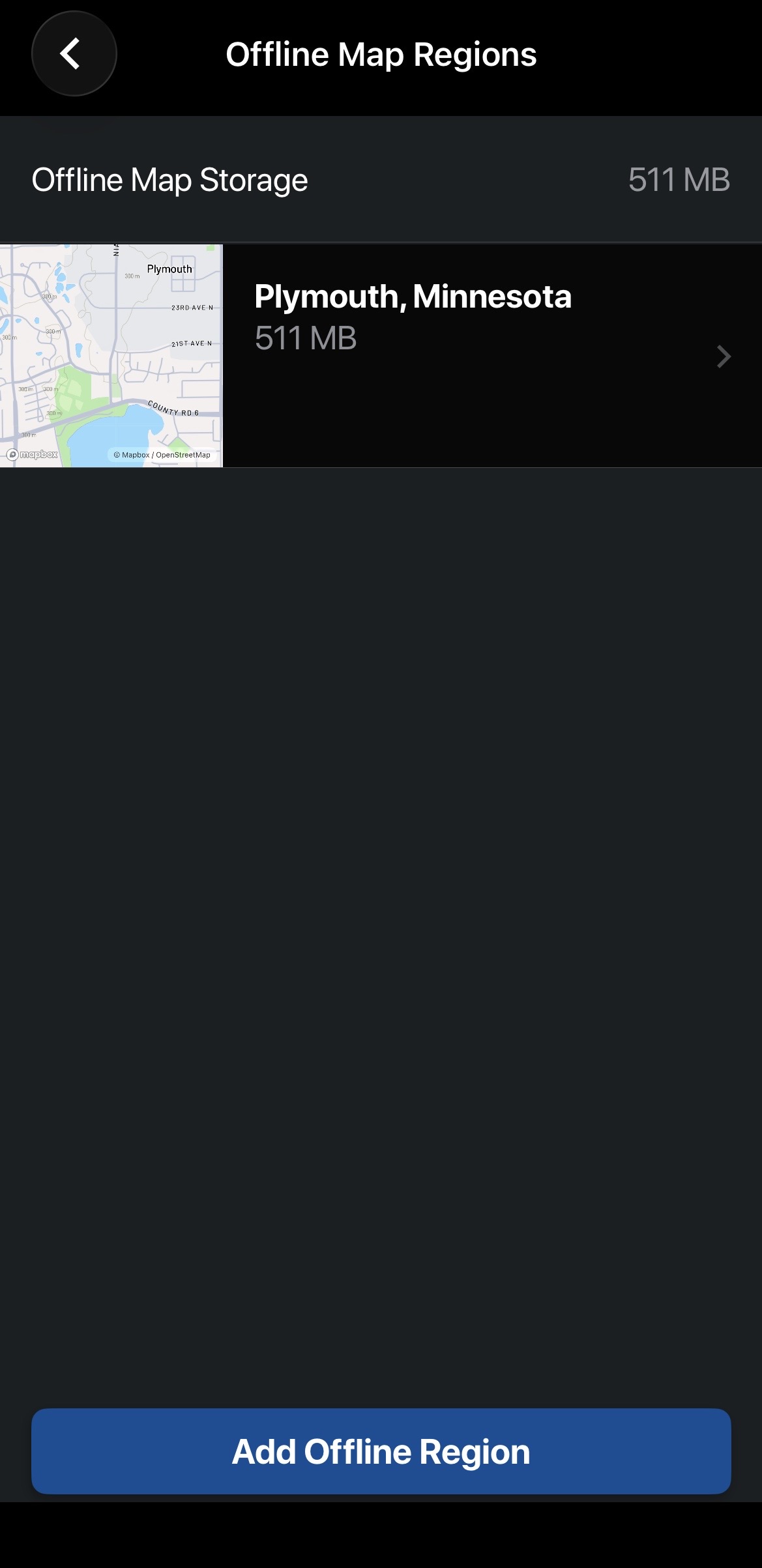
On the Offline Map Regions page, wait for the progress bar to move all the way across the row, indicating the entire region has been downloaded.
Trails and other Points of Interest for this downloaded region now will always be available on the main map tab, even when you're offline or in low connectivity out on a trail.
The Polaris App is available on the App Store® for iPhone® and iPad® and on Google Play®.
To browse all RIDE COMMAND articles, read Guide to RIDE COMMAND for Off-Road Vehicles.
Visit the RIDE COMMAND website for additional information about features, displays and software/map updates.
Mapboxsm is a service trademark of Mapbox, Inc.
Google Play® is a registered trademark of Google LLC
App Store®, iPad® and iPhone® are registered trademarks of Apple Inc.
Unless noted, trademarks are the property of Polaris Industries Inc.
© 2026 Polaris Industries Inc.


